
How I Categorized 1000s of Domains in Minutes Using AI
Remember our last adventure, where we extracted thousands of domains from various ad networks? If you missed checking our domain extraction process, please do so before you read this guide.
Well, now we’re facing a new challenge: making sense of all those domains.
But don’t worry, I’ve got a nifty solution that’ll save us hours of head-scratching.
In this guide, we’re going to turn Google Sheets into a smart domain categorizer using a dash of AI magic.
Whether you’re doing competitor research, seeking collaboration opportunities, or just trying to organize a massive list of websites, this method will be a game-changer.
No need to be a tech wizard – we’ll keep things simple and practical. By the end of this post, you’ll be categorizing domains like a pro, giving you a clear picture of the content landscape you’re dealing with.
Ready to give your spreadsheet some superpowers? Let’s dive in!
Setting Up the AI Categorization Function
Alright, let’s roll up our sleeves and get our hands dirty with some cool tech stuff! Don’t worry, I promise it’s not as complicated as it sounds.
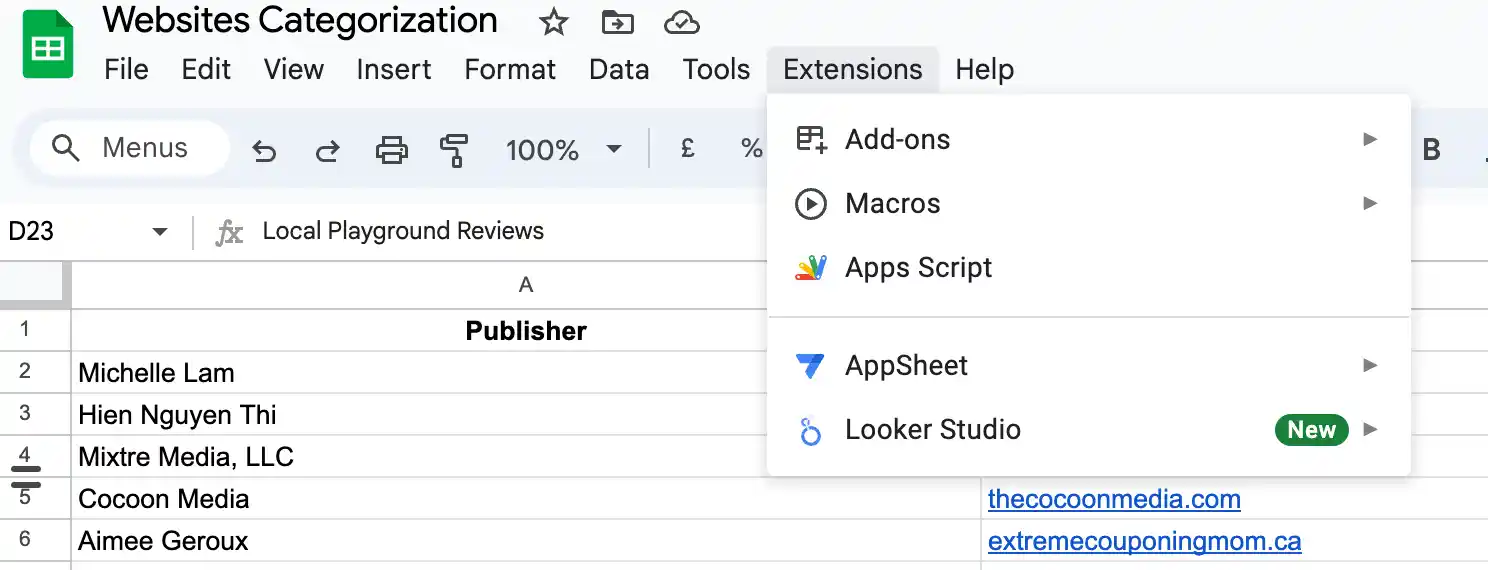
First things first, we need to add a bit of code to our Google Sheet. This code is like giving your spreadsheet a new superpower. Here’s how we do it:
- Open your Google Sheet with the domain list.
- Click on “Extension” in the top menu, then select “App Script” A new tab will open up.
- Delete any code that’s already there, and paste in this magic spell:
const OPENROUTER_API_KEY = "YOUR API GOES HERE";

/**
 * Categorizes a domain and predicts its niche using OpenRouter API.
 *
 * @param {string} prompt The prompt to send to the API.
 * @return {string} The category and niche prediction.
 * @customfunction
 */
function cat(prompt) {
  const url = 'https://openrouter.ai/api/v1/chat/completions';
  const model = 'openai/gpt-4o-mini';

  const headers = {
    'Authorization': `Bearer ${OPENROUTER_API_KEY}`,
    'Content-Type': 'application/json'
  };

  const data = {
    'model': model,
    'messages': [
      {
        'role': 'system',
        'content': 'You are an AI assistant specialized in analyzing domain names to categorize them and predict their niches. Give output in category,niche without actually mentioning the word category and niche. Example output: Technology,Software Devlopment'
      },
      {
        'role': 'user',
        'content': prompt
      }
    ]
  };

  const options = {
    'method': 'post',
    'headers': headers,
    'payload': JSON.stringify(data)
  };

  try {
    const response = UrlFetchApp.fetch(url, options);
    const jsonResponse = JSON.parse(response.getContentText());
    return jsonResponse.choices[0].message.content.trim();
  } catch (error) {
    return 'Error: ' + error.toString();
  }
}
Now, I know this looks like a bunch of gobbledygook, but here’s what it does in simple terms:
- It sets up a connection to an AI service called OpenRouter.
- This AI is really good at looking at domain names and guessing what they’re about.
- When we use this function, it’ll give us a category and niche for each domain.
But wait! Before this magic works, we need one more thing: an API key. Think of it like a special password that lets us use the AI service. Here’s how to get one:
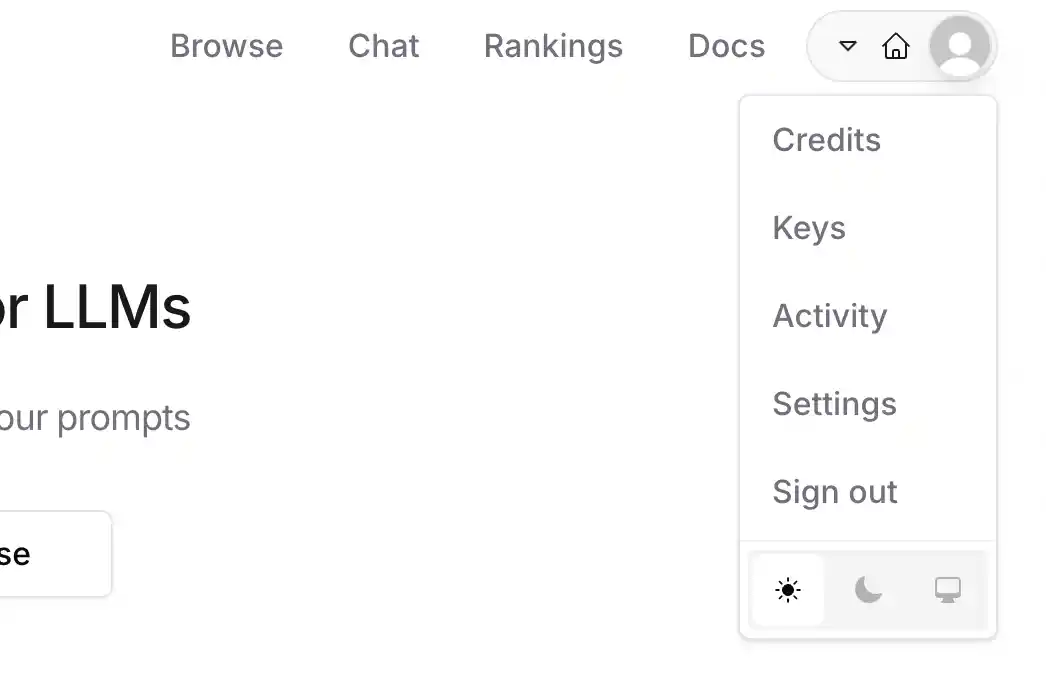
- Go to OpenRouter’s website and sign up for an account.
- Once you’re in, top up with some credit. You just need a minimum of credits. Just $10 will be more than enough not only for this categorization but for our future use as well (more about this in our upcoming blog posts :))
- Look for a section called “Keys“.
- Create a new API key and copy it.
- Go back to your Google Sheet script editor and replace ‘YOUR API GOES HERE‘ with the API key you just copied.
And voila! You’ve just given your Google Sheet the power to talk to an AI. Pretty cool, right?
Remember to save your script (there should be a floppy disk icon or a “Save” option somewhere in the script editor).
Using the Function in Google Sheets
Now that we’ve given our Google Sheet its AI superpowers, it’s time to put them to use! Let’s walk through how to categorize those domains we extracted earlier.

- First, make sure your sheet has two columns: one for the publisher name (let’s say it’s column A) and one for the domain (column B).
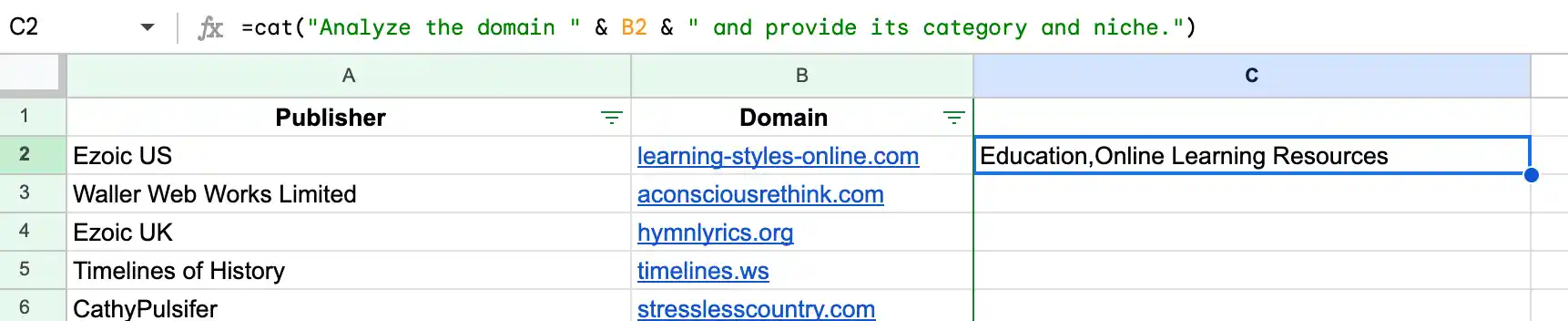
- In cell C2 (assuming your data starts from row 2), we’re going to use our magical AI function.
Type in this formula:
=cat("Analyze the domain " & B2 & " and provide its category and niche.")This is like asking our AI, “Hey, what’s this domain all about?”
- Press Enter, and watch the magic happen! You should see a category and niche appear in cell C2.
- Now, here’s a nifty trick: instead of typing this formula for every single row, we can copy it down the entire column. Just click on the little square in the bottom-right corner of cell C2 and drag it down to the last row of your data. Boom! Your AI is now working its magic on all your domains.
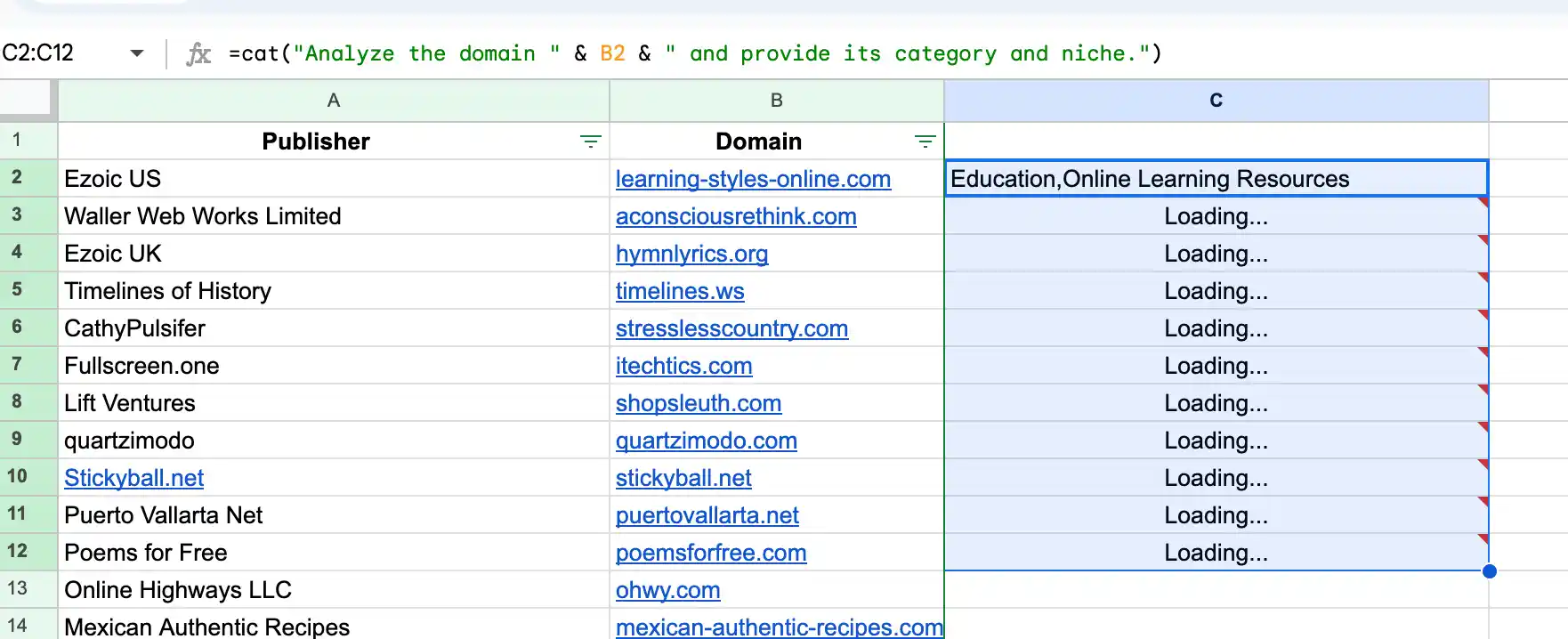
Quick tip: This process might take a while if you have thousands of domains. Maybe it’s time to grab a coffee or do a little dance while you wait.
Now, I know what you’re thinking: “But what if I want to run this again later without using up my API credits?” I’ve got you covered:
- Once all your domains are processed, select the entire column C.
- Copy it (Ctrl+C or Cmd+C).
- Right-click, select “Paste special,” then “Paste values only.” on column D.
- Now you can safely delete the original column C with the formulas.
This way, you’ve saved the results without keeping the active formulas. Smart, right?
But wait, there’s more! Let’s make this data even more useful:
- Select your newly pasted column.
- Go to “Data” in the top menu, then “Split text to columns.”
Voila! You now have separate columns for category and niche. Feel free to add headers like “Category” and “Niche” to these new columns.
Networks Covered – Download Link
Alright, let’s talk about the treasure trove of data we’re working with here. Remember when we extracted all those domains in our previous blog post?
I’ve already categorized most of these for you!
You can download the categorized data right away. How’s that for a head start?
| Ad Network | Download Link |
| Mediavine | Download Now |
| Journey | Download Now |
| FreeStar | Download Now |
| SHEMedia | Download Now |
| AdThrive | Download Now |
| Monumetric | Download Now |
| Ezoic (without categorization) | Download Now |
But wait, you might be wondering, “What about Ezoic?”
Well, here’s the deal: Ezoic is a bit different. They don’t have specific requirements for joining, so their sites can be all over the map.
Many are just starting. So, for Ezoic, I am giving you the raw data without categorization. It’s like a blank canvas for you to work with!
Interpreting and Using the Results
Now that you’ve got all this categorized data, what the heck do you do with it? Don’t worry, I’ve got some ideas for you!
First things first, let’s talk about accuracy. Our AI friend is pretty smart, but it’s not perfect. It’s making educated guesses based on domain names, so while it’s usually on the money, don’t take it as gospel. Think of it more like a helpful starting point.
Here are some cool ways you can use this data:
- Niche Exploration: Filter by category or niche to see what’s popular. Maybe you’ll discover a hot niche you never considered before!
- Competitor Analysis: Look for domains in your niche. These could be your potential competitors or collaborators.
- Content Ideas: The niches can give you ideas for content topics that are working well for others in your field.
- Ad Network Insights: Compare the niches across different networks. Does one network seem to attract more of certain types of sites?
- Opportunity Spotting: Look for underrepresented niches. Could this be a gap in the market you could fill?
Remember, the categorization is based on domain names, so it’s not 100% accurate. But here’s the thing: most of the time, a site’s domain name is pretty relevant to its content. So while it might not be perfect, it’s a great starting point for your research.
Custom Prompt for Categorization
I hear you! Maybe you’re thinking, “This is great, but I want more control over how my domains are categorized.”
Well, you’re in luck because I’ve got a little bonus for you: a custom prompt you can use with any Language Model (LLM) of your choice if you don’t want to deal with API/App Script hassles.
If you want to categorize domains in a particular way, this prompt is your new best friend.
You can copy and paste it along with your list of domains into ChatGPT, Claude, or any other LLM you prefer.
Here’s a powerful prompt to get you started:
Include all your selected domains in this section – [Your list of domains goes here]
You are an AI assistant specialized in analyzing domain names to categorize them and predict their niches. Your task is to examine each domain name provided and determine its likely category and niche based on the words, phrases, or implications in the domain name.

Please follow these guidelines:
1. Provide your output in the format: Domain,Category,Niche
2. Be as specific as possible with categories and niches, but use common, recognizable terms.
3. If a domain is ambiguous, make your best guess based on common uses of similar domain names.
4. For domains that are acronyms or not clearly indicative of a category, use "Uncategorized" for both category and niche.
5. Common categories include but are not limited to: Technology, Health & Wellness, Finance, Education, Entertainment, Lifestyle, Business, Travel, Food & Drink, Sports, News & Media.
6. Niches should be more specific than categories. For example, if the category is "Technology," a niche might be "Mobile App Development" or "Cybersecurity."
7. Be consistent in your categorizations across similar domains.
8. Do not include any explanations or comments - only provide the Domain,Category,Niche for each entry.

Here's an example of the expected output:
techblog.com,Technology,Software Development
healthyeats.net,Health & Wellness,Nutrition
financepro.org,Finance,Personal Investing
unclearcorp.com,Uncategorized,Uncategorized

Please categorize the following list of domains:
[Your list of domains goes here]
But wait.
What if you already have a niche in your mind?
In that case, the above prompt might not be helpful to you, right?
Well, I am going to give you one more custom prompt to solve that problem 🙂
Include your niche and your selected domains in this section – [Niche] [List of domains]
You are an AI assistant specialized in analyzing domain names and identifying those related to specific niches. Your task is to examine a list of domain names and filter out those that are relevant to a given niche or topic.

Please follow these guidelines:
1. When provided with a list of domains and a specific niche, identify and list only the domains that are likely related to that niche.
2. Provide your output in the format: Domain,Relevance
3. Where 'Relevance' is a brief explanation of how the domain relates to the specified niche.
4. Be creative and consider indirect or potential relationships between the domain and the niche.
5. If no domains in the list appear related to the specified niche, state "No relevant domains found."

Do not include any additional explanations or comments beyond the requested format.

Example:

User input:

Niche: Dog Walking
Domains:
pawsitive.com
techguru.net
walkies.dog
financeplus.org
barkbuddy.com

Expected Output:

pawsitive.com,Potentially related to pet services including dog walking
walkies.dog,Directly related to dog walking services
barkbuddy.com,Could be a dog walking app or service

Please analyze the following list of domains and identify those related to the specified niche:

[Niche]
[List of domains]
Feel free to modify this prompt to fit your specific needs.
Want to focus on a particular industry? Add it to the guidelines. Have specific categories you’re interested in? List them out.
The more specific you are, the better the AI can tailor its categorizations to your needs.
This method gives you more control and allows for more customized categorization than our Google Sheets method.
It’s perfect for when you have a clear idea of what you’re looking for or when you need more detailed categorizations without any automation.
So, whether you’re using our Google Sheets AI function or these custom prompts, you’re now equipped to tackle domain categorization like a pro!
And there you have it, folks! We’ve just turned your ordinary Google Sheet into a domain-categorizing powerhouse. Pretty neat, right?
Let’s quickly recap what we’ve accomplished:
- We set up a nifty AI function in Google Sheets.
- We used this function to categorize thousands of domains automatically.
- We covered seven major ad networks, including Mediavine, AdThrive, and more.
- We explored how to interpret and use this treasure trove of data.
- We have crafted a customized prompt to categorize the domains as per our needs.
Remember, this method isn’t just about sorting domains into neat little boxes. It’s about gaining insights, spotting trends, and finding opportunities in the vast ocean of online content.
Whether you’re a blogger looking to understand your competition, a marketer searching for collaboration opportunities, or just a curious soul wanting to make sense of the digital landscape, this tool can be your secret weapon.
But here’s the real magic: we’re just scratching the surface.
In our next blog post, we’re going to take this categorized data and run it through one of my favorite analysis tools.
We’ll be diving deep into the world of these domains, uncovering patterns and insights that could change the way you approach your online strategy.
Now, I’d love to hear from you! Have you tried this method? What interesting insights did you uncover? Maybe you discovered a niche you never knew existed, or found the perfect collaboration partner hiding in plain sight.
Drop a comment below and share your experiences. Did you run into any hiccups? Have ideas for how to use this data in creative ways? Let’s get a conversation going!